


Note: You do not need to do all of this.
Start with the non negotiables. Those are the most benefit. Everything below them is optional refinement. Add them if you want to, not because the list exists.
THE NON-NEGOTIABLES
EMF
1. 5G down to LTE
Settings > Cellular > Cellular Data Options > Voice & Data > select LTE.
5G runs higher frequencies and denser small-cell infrastructure, and mmWave bands are the aggressive end of it. LTE is the older, lower, better-characterized band set. Signal quality is usually indistinguishable for normal use.
2. Find My network off
Settings > [your name] > Find My > Find My iPhone > Find My network > off.
Read this one TWICE. The Find My network keeps a Bluetooth beacon alive even when the phone is powered off. That is the design. Turning it off is the only way to get a genuinely silent device when it is off.
3. Bluetooth off at the source
Settings > Bluetooth > toggle off.
Do not use the Control Center button. That one only disconnects devices until the next morning. The radio stays live for AirDrop, Handoff, Find My, and location scanning. Only the Settings toggle actually stops it.
4. Wi-Fi off at the source
Settings > Wi-Fi > toggle off.
Same trap as Bluetooth. Control Center is a disconnect, not a shutdown.
Then: Settings > Wi-Fi > Ask to Join Networks > Off.
And: Auto-Join Hotspot > Never.
Otherwise the phone scans and probes constantly looking for networks to join.
5. Personal Hotspot off
Settings > Personal Hotspot > Allow Others to Join > off.
A hotspot is your phone acting as a router. It broadcasts continuously whether or not anyone is connected.
6. AirDrop off
Settings > General > AirDrop > Receiving Off.
Also: Bringing Devices Together > off. That is NameDrop, and it keeps proximity radios primed.
7. Airplane Mode when not in use, and at night
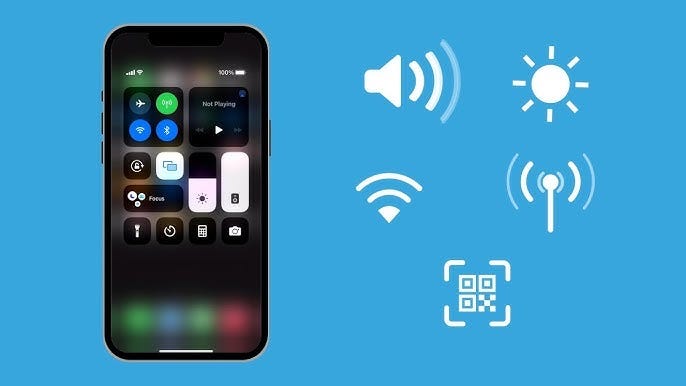
Settings > Airplane Mode, or swipe into Control Center.
8. Keep phone at least 30cm while taking calls. This reduces radiation by 90%
9. No Bluetooth earbuds. Ever. Wired or speakerphone only.
Bluetooth earbuds put a transmitter inside your ear canal, against the temporal bone, inches from the brain.
10. Background App Refresh off
Settings > General > Background App Refresh > Off (the top toggle, not per-app).
The single highest-leverage background setting. Turns hundreds of transmit bursts an hour into a handful. Thirty seconds to do.
11. Never charge your phone near you
The charger is its own dirty electricity source. Charge it across the room, not on the nightstand, and do not hold the phone while it is charging.
12. Location Services
Settings > Privacy & Security > Location Services.
Either kill the master switch, or go app by app. Nothing gets Always unless you have a real reason.
• LIGHT •

13. Night Shift, scheduled to run always and maxed
Settings > Display & Brightness > Night Shift > Scheduled > Sunset to Sunrise.
Drag Color Temperature to More Warm. I run this setting always
Works well during daytime but weak on its own at night. For nighttime, best to pair with the following settings
14. Red screen after dark. This is the big one.
Settings > Accessibility > Display & Text Size > Color Filters > on.
Select Color Tint.
Drag Intensity all the way to maximum.
Drag Hue all the way to the red end.
Night Shift alone does very little.
15. Reduce White Point
Same menu: Settings > Accessibility > Display & Text Size > Reduce White Point > on > slide to 80 to 100%.
OLED iPhones dim by pulse-width modulation. The screen is not getting dimmer. It is switching on and off faster than you consciously perceive, staying off for a longer fraction of each cycle.
The lower the brightness slider goes, the worse the flicker gets.
This is why Reduce White Point matters more than the brightness slider. It lets you get a dark screen while keeping the panel's duty cycle higher, which means less flicker at the same perceived dimness.
If OLED screens give you headaches or eye strain, this is the reason.
This gets you below the brightness slider's floor. Stock minimum brightness is still far too bright for a dark room. This takes it down another order of magnitude.
Red tint plus Reduce White Point is the pair. Neither one alone is enough.
16. Make it one tap
Settings > Accessibility > Accessibility Shortcut > select Color Filters and Reduce White Point.
Triple-click the side button to toggle.
Or: Settings > Accessibility > Touch > Back Tap > Double Tap > Color Filters.
Tap the back of the phone twice and the screen goes red.
17. Auto-Brightness on
Settings > Accessibility > Display & Text Size > Auto-Brightness > on.
Hidden in Accessibility, not in Display, which is why most people have it off without knowing. It stops the screen sitting at full output in a dim room.
18. Raise to Wake and Tap to Wake off
Settings > Display & Brightness > Raise to Wake > off.
Settings > Accessibility > Touch > Tap to Wake > off.
Stops the screen firing light at you every time you move the phone.
19. Always-On Display off
Settings > Display & Brightness > Always On Display > off.
iPhone 14 Pro and later. A permanently lit screen in your peripheral vision is exactly what you do not want.
• OTHER SETTINGS TO CONSIDER •
20. Low Data Mode
Settings > Cellular > Cellular Data Options > Data Mode > Low Data Mode.
Fewer background transfers = fewer transmit bursts.
Do the same on Wi-Fi: Settings > Wi-Fi > tap the (i) next to your network > Low Data Mode on.
21. Wi-Fi Assist off
Settings > Cellular > scroll to the very bottom > Wi-Fi Assist > off.
This is buried on purpose. When Wi-Fi is weak, this silently fires up the cellular radio to fill the gap. You end up with two radios transmitting instead of one.
22. Cellular Data off when you do not need it
Settings > Cellular > Cellular Data > off.
Phone still receives calls and texts. Stops the constant data chatter.
23. Handoff and Continuity off
Settings > General > AirPlay & Continuity (older iOS: AirPlay & Handoff).
Turn off Handoff.
Turn off Automatically AirPlay.
Turn off Continuity Camera.
Every one of these maintains a low-energy Bluetooth beacon so your devices can find each other.
24. Ultra Wideband off
Settings > Privacy & Security > Location Services > System Services > Networking & Wireless > off.
This is the U1 / U2 chip. It is a separate short-range radio most people do not know exists. It runs for AirTag precision finding and device handoff.
25. Wi-Fi Calling off
Settings > Phone > Wi-Fi Calling > off.
Keeps calls on the cellular path instead of running both stacks.
26. Express Transit / NFC
Settings > Wallet & Apple Pay > Express Transit Card > None.
27. Push email to manual
Settings > Apps > Mail > Mail Accounts > Fetch New Data.
Turn Push off. Set Fetch to Manually.
Now mail arrives when you open the app. Not every 60 seconds.
28. Automatic downloads and updates
Settings > App Store:
• App Downloads > off
• App Updates > off
• In-App Content > off
• Automatic Downloads over Cellular > off
Settings > General > Software Update > Automatic Updates > turn off Download and Install.
29. iCloud sync
Settings > [your name] > iCloud.
Turn off Photos sync, or set it to upload only when plugged in and on Wi-Fi.
Turn off iCloud Backup and back up manually to a computer instead.
Turn off syncing for apps you do not need synced.
Photo libraries uploading in the background are one of the largest sustained transmit loads on a phone.
30. Siri off
Settings > Apple Intelligence & Siri:
• Listen for "Siri" / "Hey Siri" > off
• Press Side Button for Siri > off
• Allow Siri When Locked > off
Then: Settings > Privacy & Security > Analytics & Improvements > Improve Siri & Dictation > off.
31. Zoom Low Light filter (the darkest setting on the phone)
Settings > Accessibility > Zoom > on.
Zoom Region > Full Screen Zoom.
Zoom Filter > Low Light.
Set Maximum Zoom Level to minimum so it does not actually magnify.
Triple-tap with three fingers to toggle.
Stacked on red tint and Reduce White Point, this is as dark as an iPhone goes.
32. Limit Frame Rate
Settings > Accessibility > Motion > Limit Frame Rate > on.
Caps ProMotion displays at 60Hz. Some people are noticeably more comfortable with this on.
33. Auto-Lock to 30 seconds
Settings > Display & Brightness > Auto-Lock > 30 Seconds.
34. Delete apps
The fastest EMF reduction available. Fewer apps = fewer background processes = fewer transmissions.
35. Widgets and Live Activities
Remove polling widgets from your home and lock screen. Weather, stocks, sports, and delivery trackers refresh constantly.
36. Notifications
Settings > Notifications > go app by app and kill everything non-essential.
Each notification is a receive event plus a screen wake. You are cutting EMF and light in the same move.
37. Apple Intelligence off
Settings > Apple Intelligence & Siri > turn the whole thing off.
Cuts on-device processing heat and the cloud round trips it makes.
I also sent this link to Dr. Henry Ealy with The Energetic Health Institute. He has done lectures on cell phone safety and uses meters quantify toxicity. He may be someone great for you to connect with :) Catherine
This seems very good for those in the Targeted Community as well.